

How to Convert TreePad TPD or DAT File to HJT
Updated: May 23, 2026
If you have a TreePad database in the .tpd (TreePad Business Edition or PLUS) or .dat (TreePad X Enterprise) format and need to convert it to the older .hjt format, you can do so directly from within TreePad using its built-in export feature. This is useful when migrating your data to another application that supports the .hjt format.
If you no longer have TreePad installed, you can download TreePad first.
Step-by-step instructions
-
Open your database in TreePad Business Edition or TreePad X Enterprise.
-
In the tree panel on the left, select the node you want to export. To export the entire database, select the root node at the top of the tree.
-
From the menu, go to Export > Subtree > To File.
-
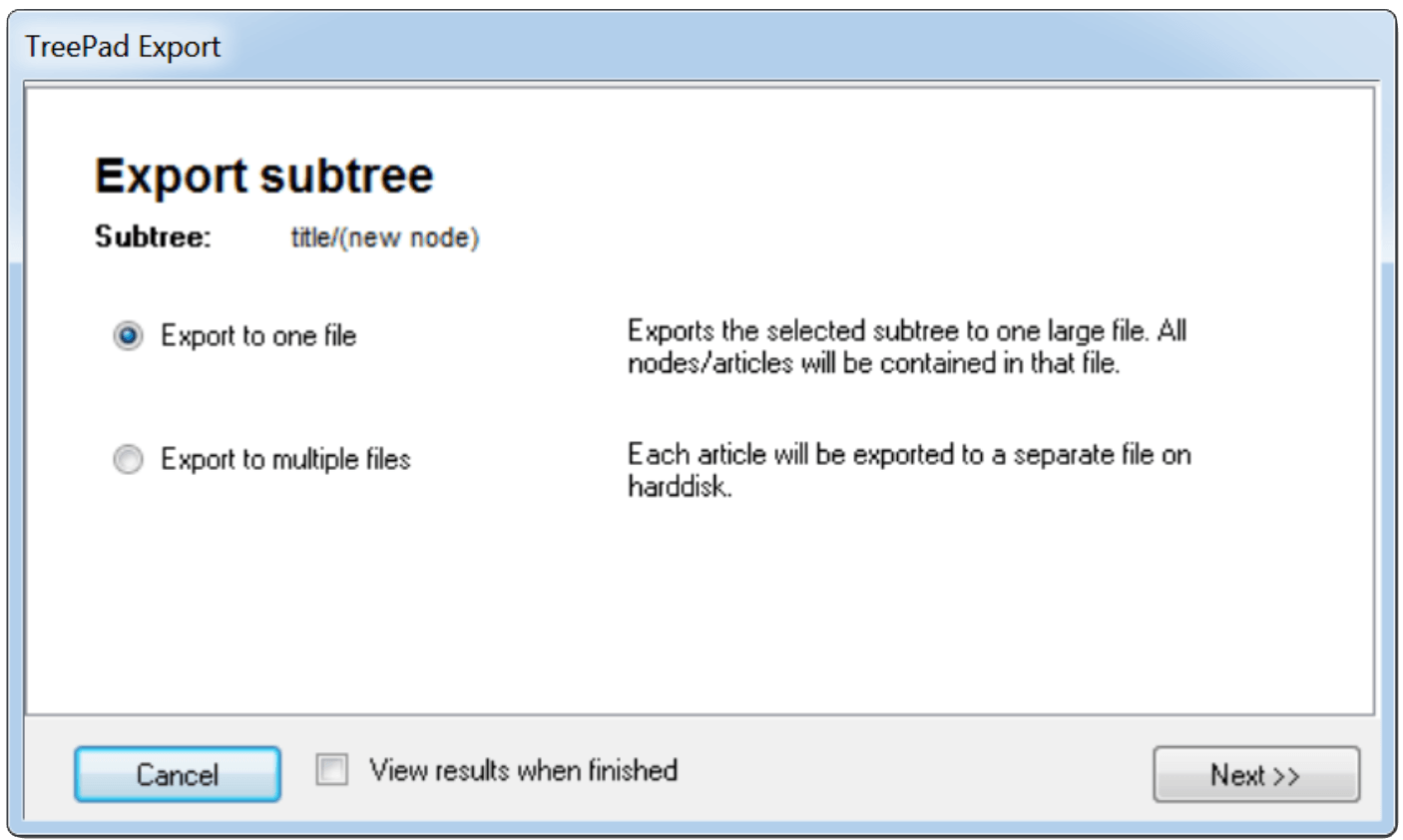
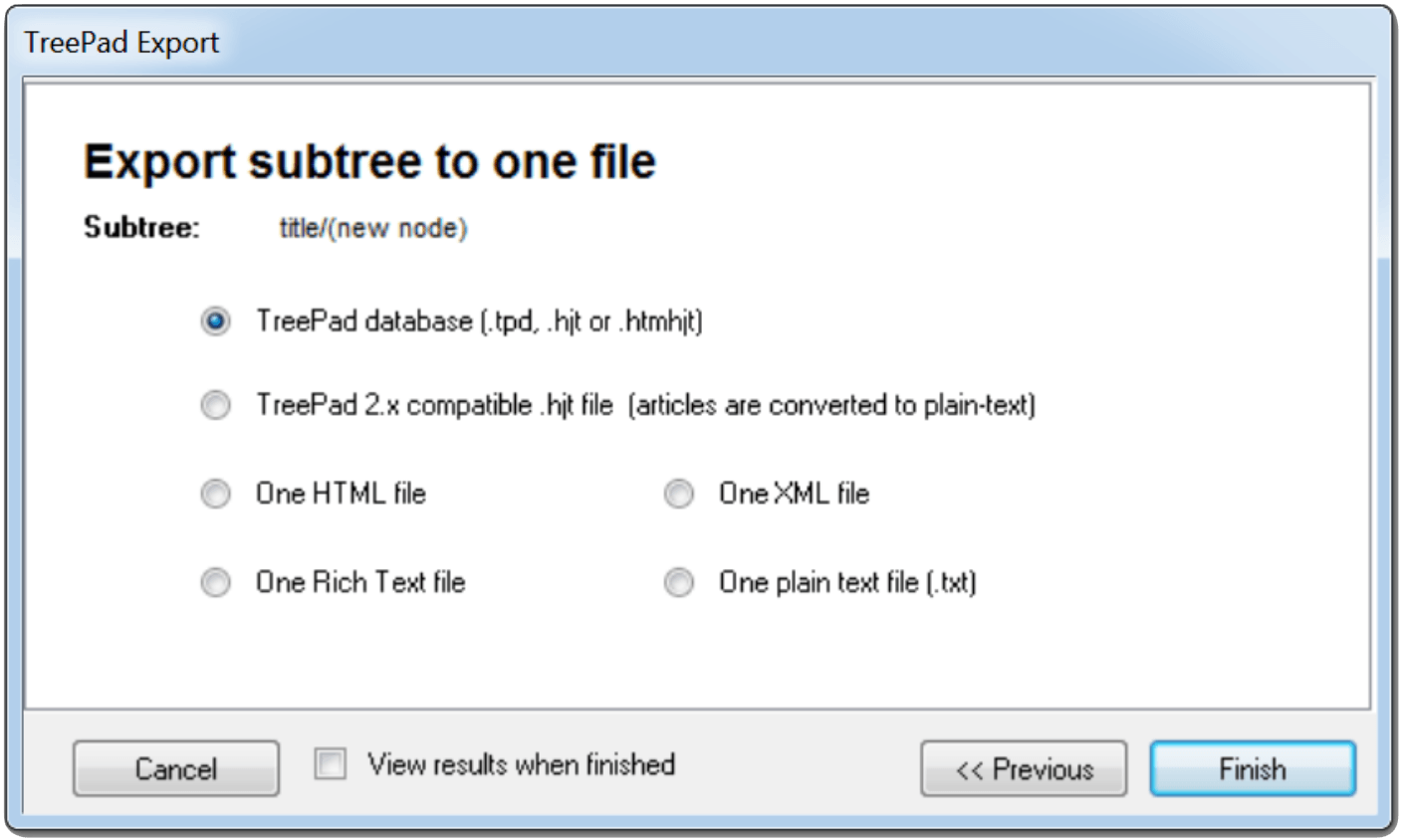
The TreePad Export dialog will appear. Make sure the following options are selected:
- Select Export to one file and click Next
- Select TreePad database as the export type and click Next
-
Save dialog will open. Do the following:
- Type a name for the output file
- Set Save as type to TreePad 6.x file (*.hjt)
- Click Save
TreePad will create an .hjt file at the location you specified.
If your database contains images or file attachments, TreePad will also produce a .tpz file alongside the .hjt file — make sure to keep both files in the same folder, as the .tpz file holds the embedded media.
Looking for a TreePad alternative?
MyInfo can import .hjt files and preserves your notes, formatting, and images. Learn more about switching from TreePad to MyInfo.